
Quote editor (parts, services, nesting, notes)
How to edit part line items, add services, and review totals.
The quote editor is where you review totals, adjust parts and services, run nesting, and manage quote status.
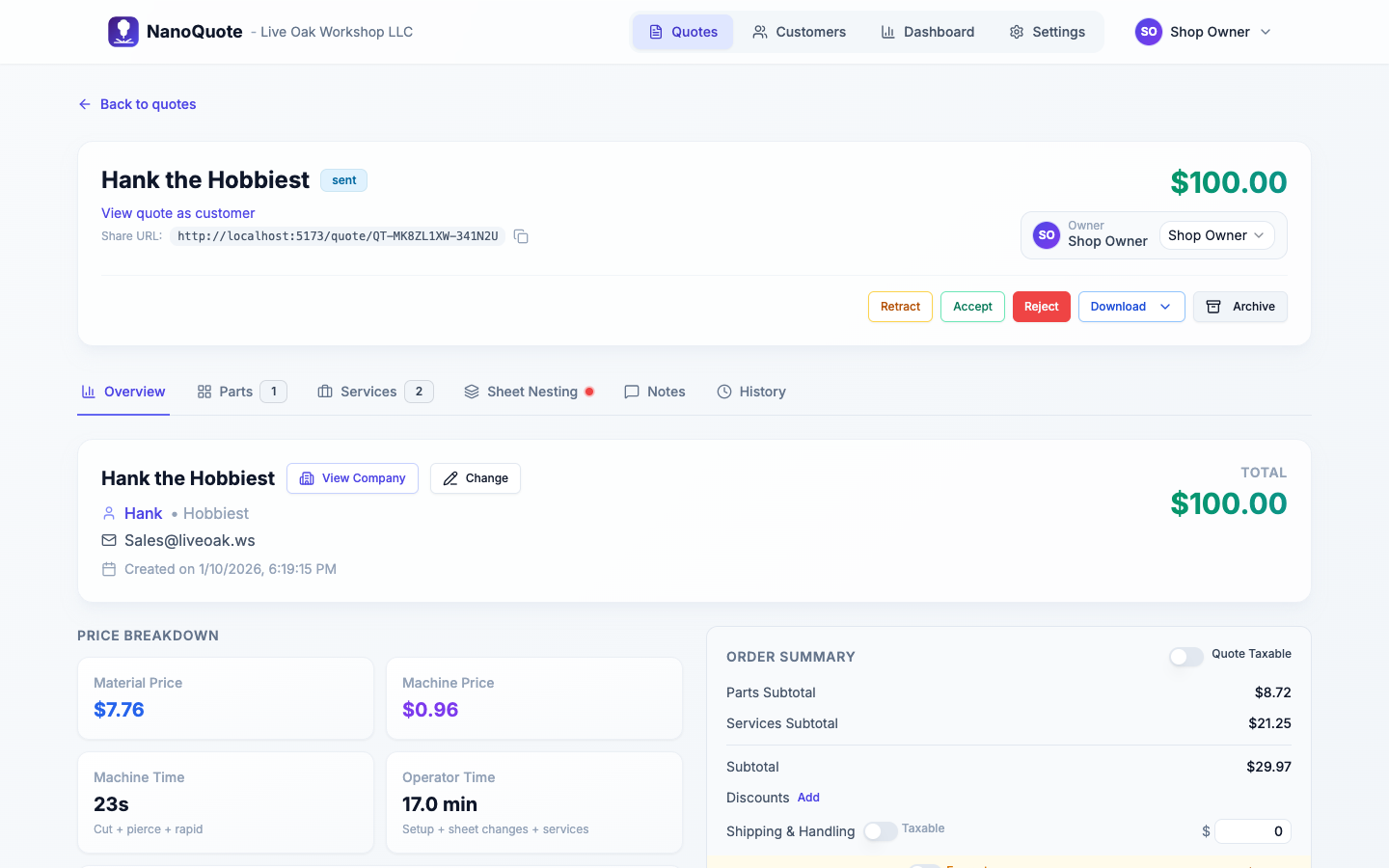
If you want a deeper explanation of how totals are calculated, see: Quote calculator.
Tabs
- Overview: totals, tax/shipping, display settings, customer/contact, addresses
- Parts: part line items (files/layers), quantities, materials/machines, part services
- Services: quote-level services
- Sheet Nesting: sheet utilization and material analysis
- Notes: internal notes and customer feedback
- Attachments: supporting documents and files for the quote
- History: activity log of changes and customer activity
Overview tab

Common actions:
- Set Quote taxable on/off.
- Edit Tax rate and Shipping & Handling.
- Override Display units for this quote.
- Set Quote display mode (what customers see):
- Line items: services shown as separate lines.
- Part costs: services rolled into per-part pricing.
Display mode tips:
- Set the default display mode in Settings -> Configuration -> Settings.
- Use Always show as line item on a quote-level service to keep it visible even in Part costs mode.
- Operator time rollups include setup, sheet changes, and any time-based services on the quote.
Quote discounts
Discounts can be applied to parts, services, and shipping on each quote:
- Parts Discount: percentage off the parts/materials subtotal
- Services Discount: percentage off the services subtotal
- Shipping Discount: percentage off shipping & handling
How quote discounts work:
- When a customer is selected, their default discount percentages are automatically applied
- You can adjust discount percentages for each quote without affecting the customer's defaults
- Click Edit next to the discounts summary to open the discount editor
- Discount amounts are calculated automatically and shown in the quote totals
- Customers see discount line items on their quote page
The discounts section shows a summary line (e.g., "Parts: 10%, Services: 5%") with an Edit button to modify the rates.
Shop minimum adjustment
If your organization has a shop minimum configured:
- Quotes below the minimum will show a "Shop Minimum Adjustment" line
- This adjustment brings the pre-tax total up to your organization's minimum
- The adjustment is calculated automatically after discounts are applied
- You can see the adjustment amount in the quote totals breakdown
- Use the Exempt toggle next to the shop minimum line to exclude a specific quote from the minimum
- When a customer is marked as exempt from shop minimum, their quotes will automatically be exempt
Parts tab
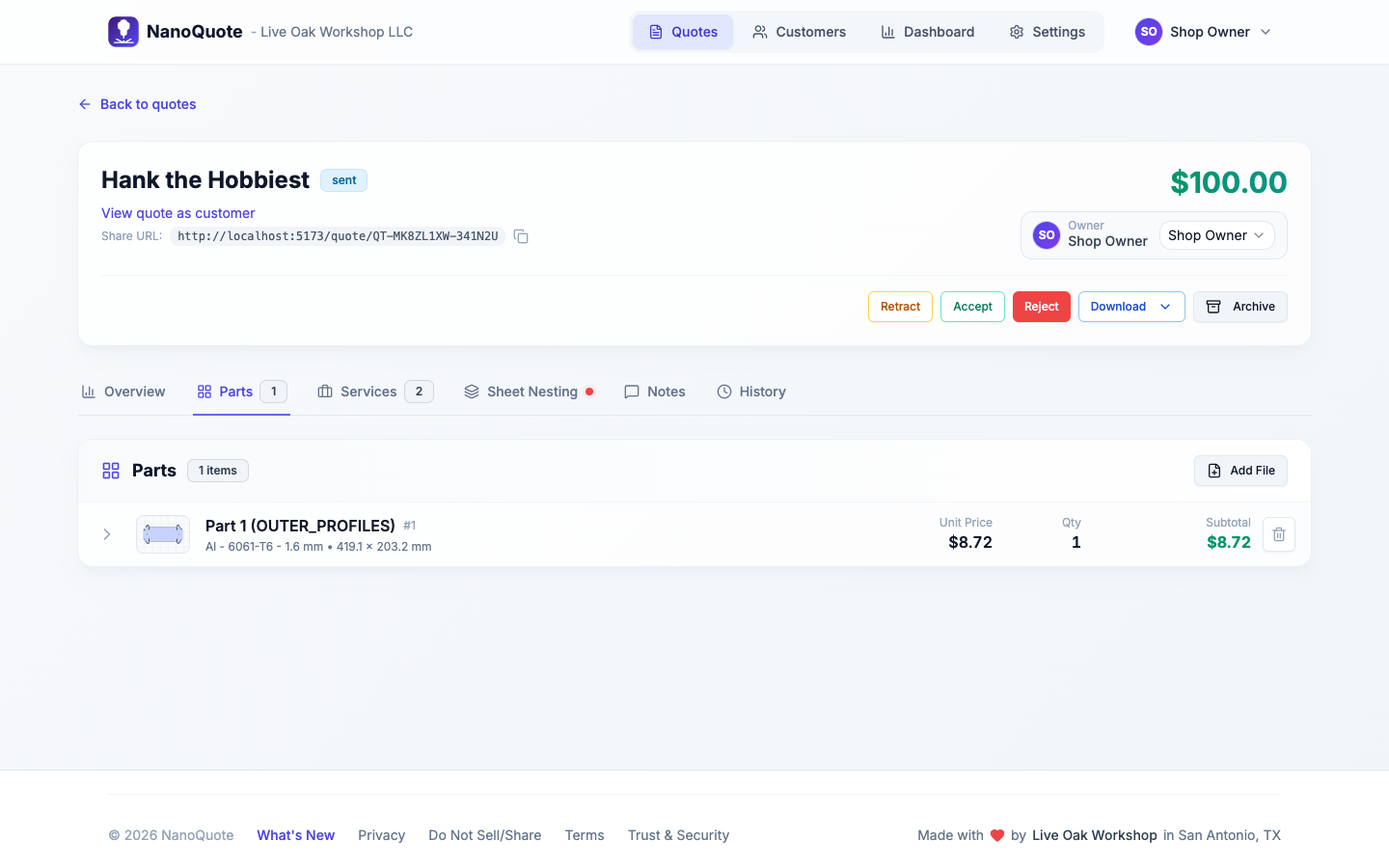
Each part line item can include:
- Preview and basic dimensions
- Quantity and unit price
- Material and machine overrides (per part)
- Part-level services (optional)
Edit a part line item
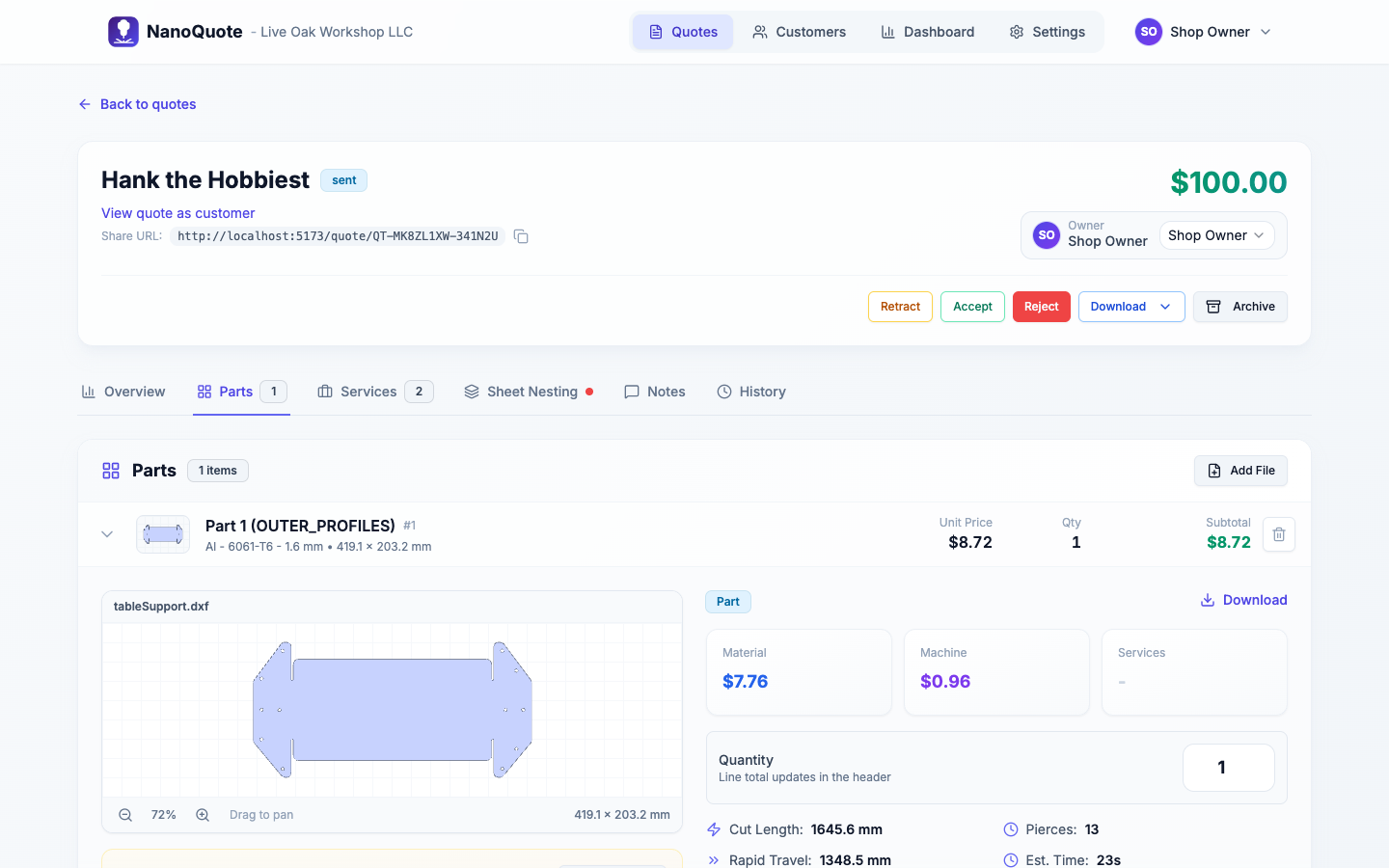
Typical edits:
- Quantity: adjust the part count for this quote.
- Size override: adjust width/height (proportions stay locked).
- Material/Machine: override the quote defaults for this part.
- Taxable: if the quote is taxable, each line can be marked taxable/non-taxable.
Part-level services and pricing modes
Part-level services are attached to a specific part (deburr, tapping, etc.) and roll into totals automatically.
- Per piece: price times part quantity.
- Per batch: charged once per part line, regardless of quantity.
Time-based part services
When adding a part service you can choose Time Based pricing:
- Enter minutes and an hourly rate; NanoQuote calculates the unit price automatically.
- The rate defaults to your organization’s Baseline Operator Rate.
- Use the edit time button to adjust minutes or rate after the line is created.
Service catalog shortcuts
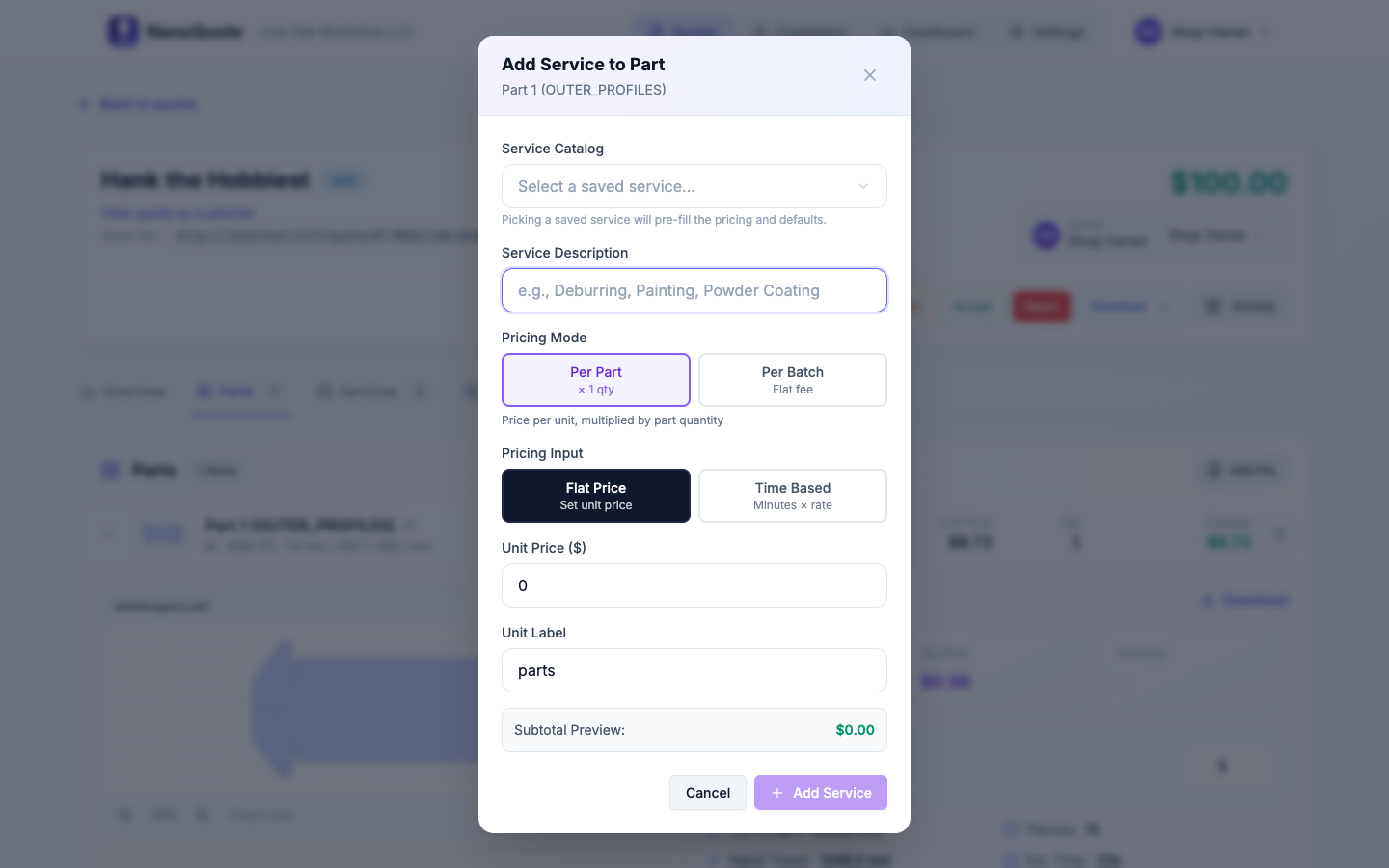
When adding a part-level service, use the Service Catalog dropdown to prefill pricing mode, unit price, and defaults from your saved services (including any time-based settings).
Downloads
Parts and quotes may offer downloads:
- Original uploaded file
- Preview as SVG
- Preview/export as DXF
Services tab
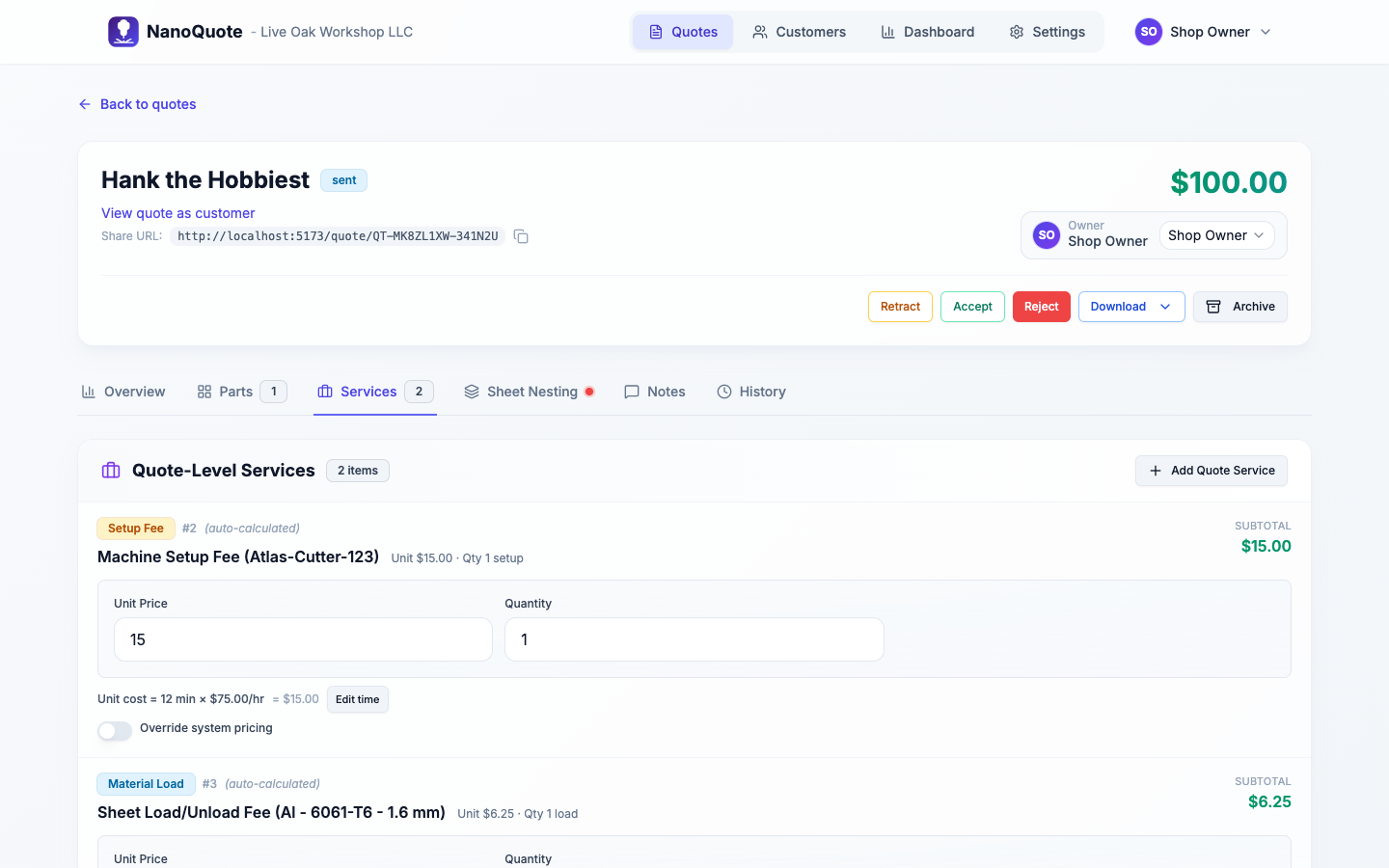
Services represent labor, setup, handling, finishing, shipping, etc.
Important distinctions:
- Quote-level services appear here (per quote).
- Part-level services (per part/per batch) appear under the part in the Parts tab.
- Use Always show as line item to keep a quote-level service visible even in Part costs mode.
Time-based quote services
Quote-level services also support Time Based pricing:
- Minutes × rate compute the unit price.
- The rate defaults to your organization’s Baseline Operator Rate.
- Use the time editor on a service line to adjust minutes or rate as needed.
Service catalog shortcuts
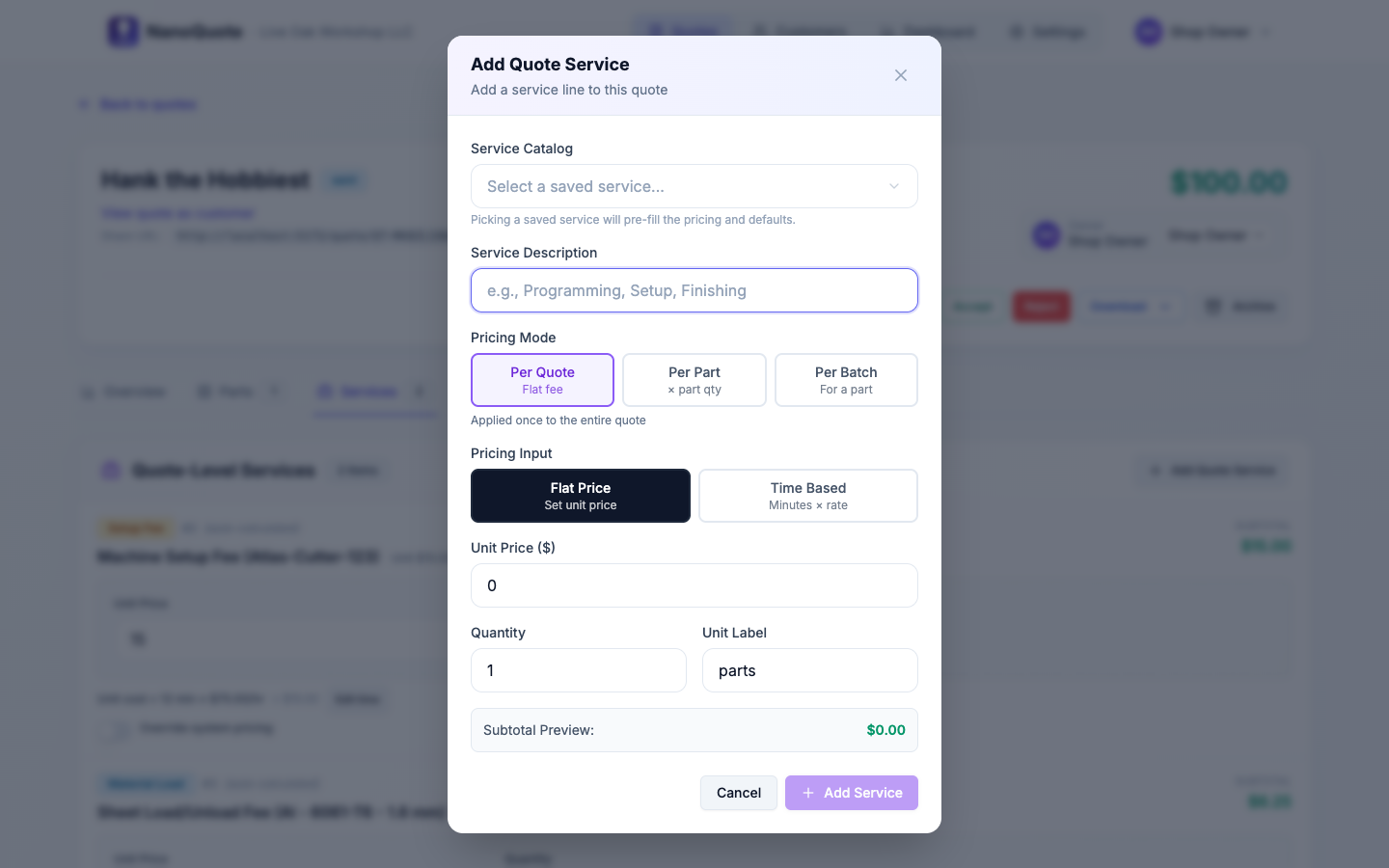
Use the Service Catalog dropdown to apply saved quote-level services with pricing, quantity, and units already filled in (including time-based settings).
Sheet Nesting tab
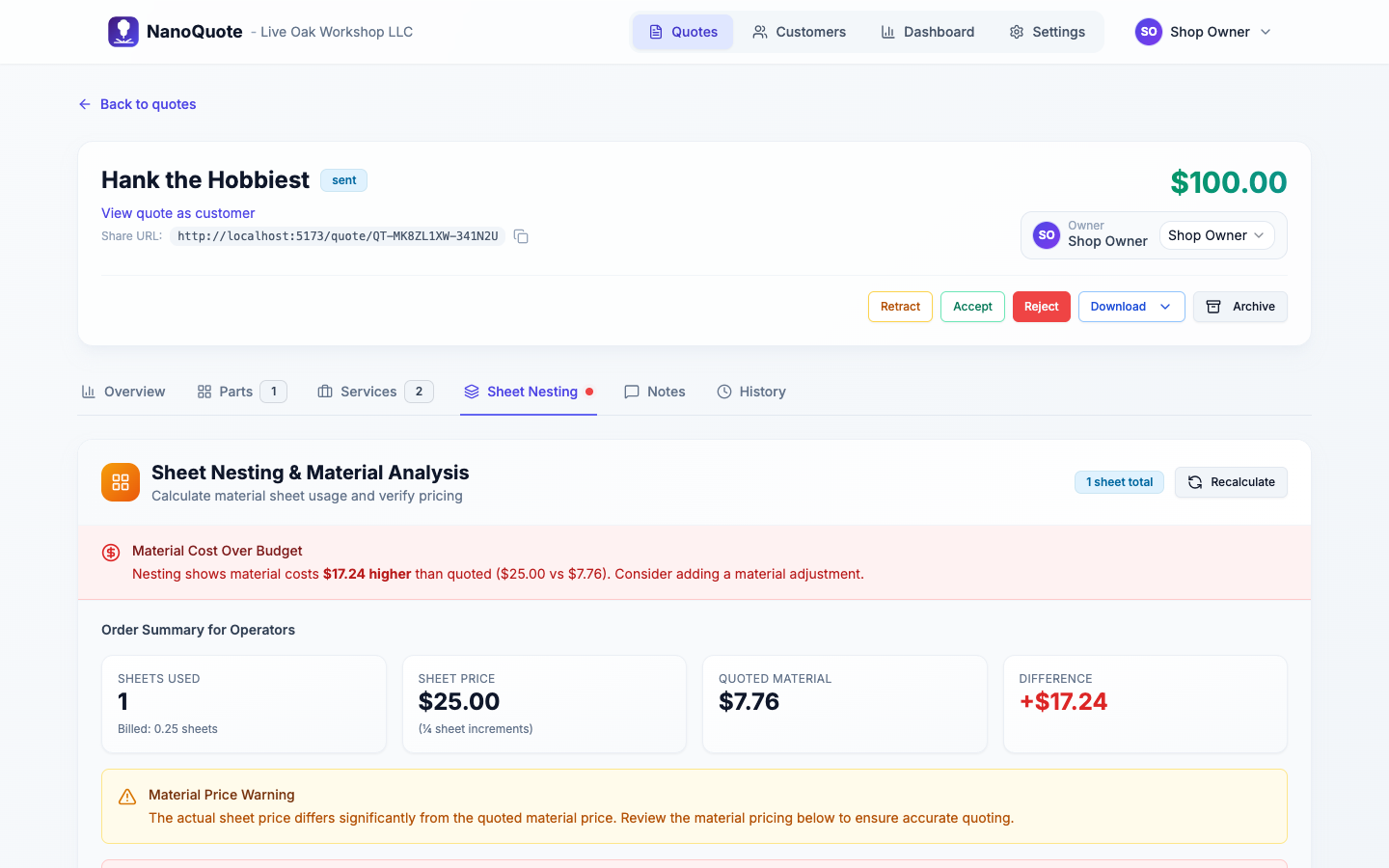
Common actions:
- Calculate nesting: recompute sheet utilization after changes.
- Update material load fees: if sheet count changes, update handling fees.
- Material adjustment: add a one-time adjustment/credit if actual sheet usage differs from the quoted material allowance.
Notes tab
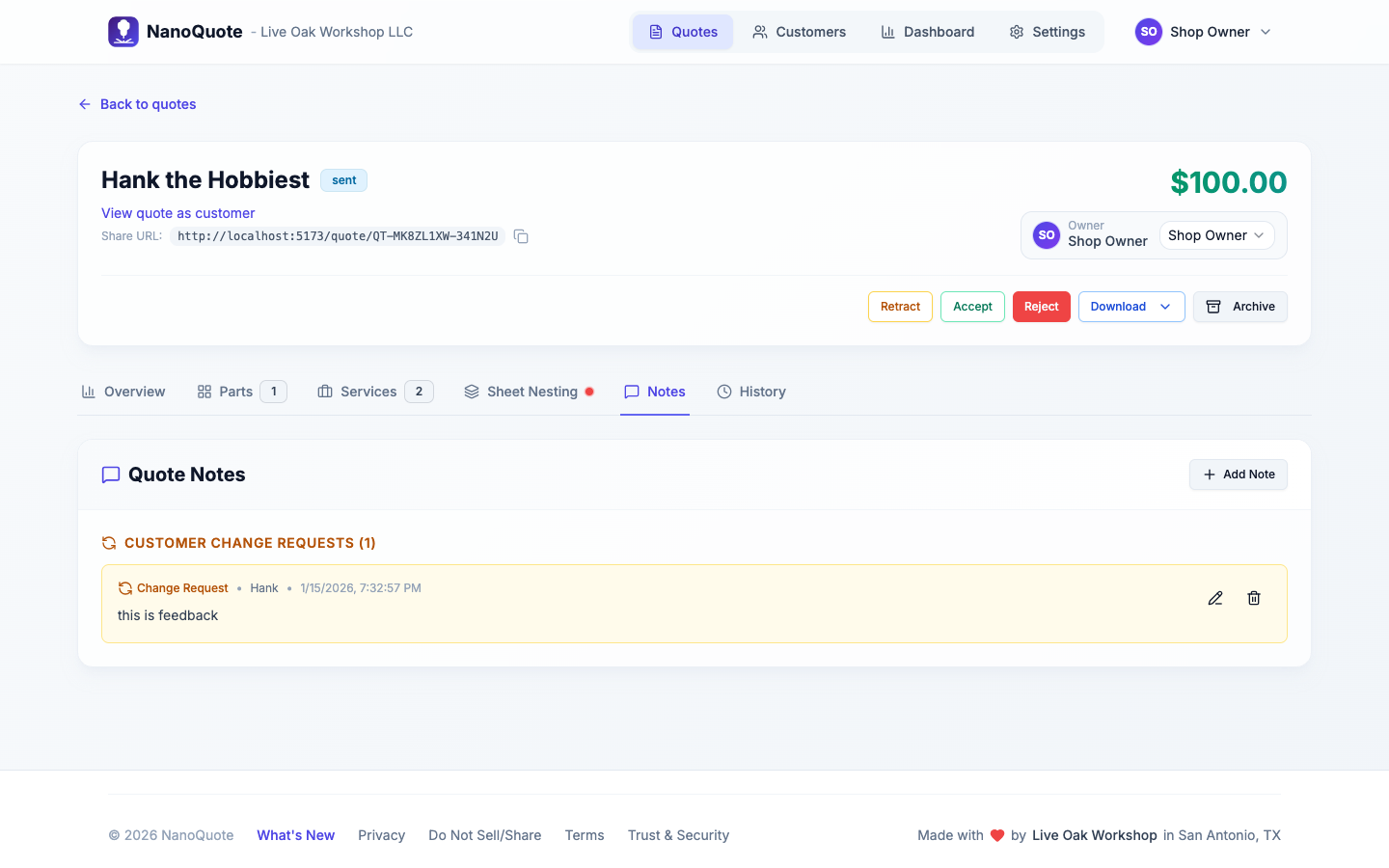
Notes are useful for:
- Capturing assumptions ("customer supplies material", "no deburr", etc.)
- Tracking customer feedback from the quote page
Attachments tab
The Attachments tab lets you attach supporting documents to your quotes—drawings, specifications, PDFs, images, or any other files your customer may need.
Adding an attachment
- Click Add Attachment in the header.
- Upload a file (max 10 MB).
- Enter a Title (required) and optional Description and Category.
- Toggle Visible to customer to control whether the file appears on the customer's quote page.
- Click Save Attachment.
Managing attachments
- Edit: Update title, description, category, or visibility.
- Delete: Remove the attachment (and its stored file).
- Download: Download the original file.
Customer visibility
- When Visible to customer is enabled, the attachment appears in the "Attachments" section of the customer quote page.
- Customers can download visible attachments directly from their quote link.
- Internal-only attachments (visibility off) are only visible to your team.
Feature availability
Quote attachments require an active subscription with the Quote Attachments benefit. The Attachments tab is hidden if your plan doesn't include this feature. Trial accounts have full access to attachments during the trial period.
History tab
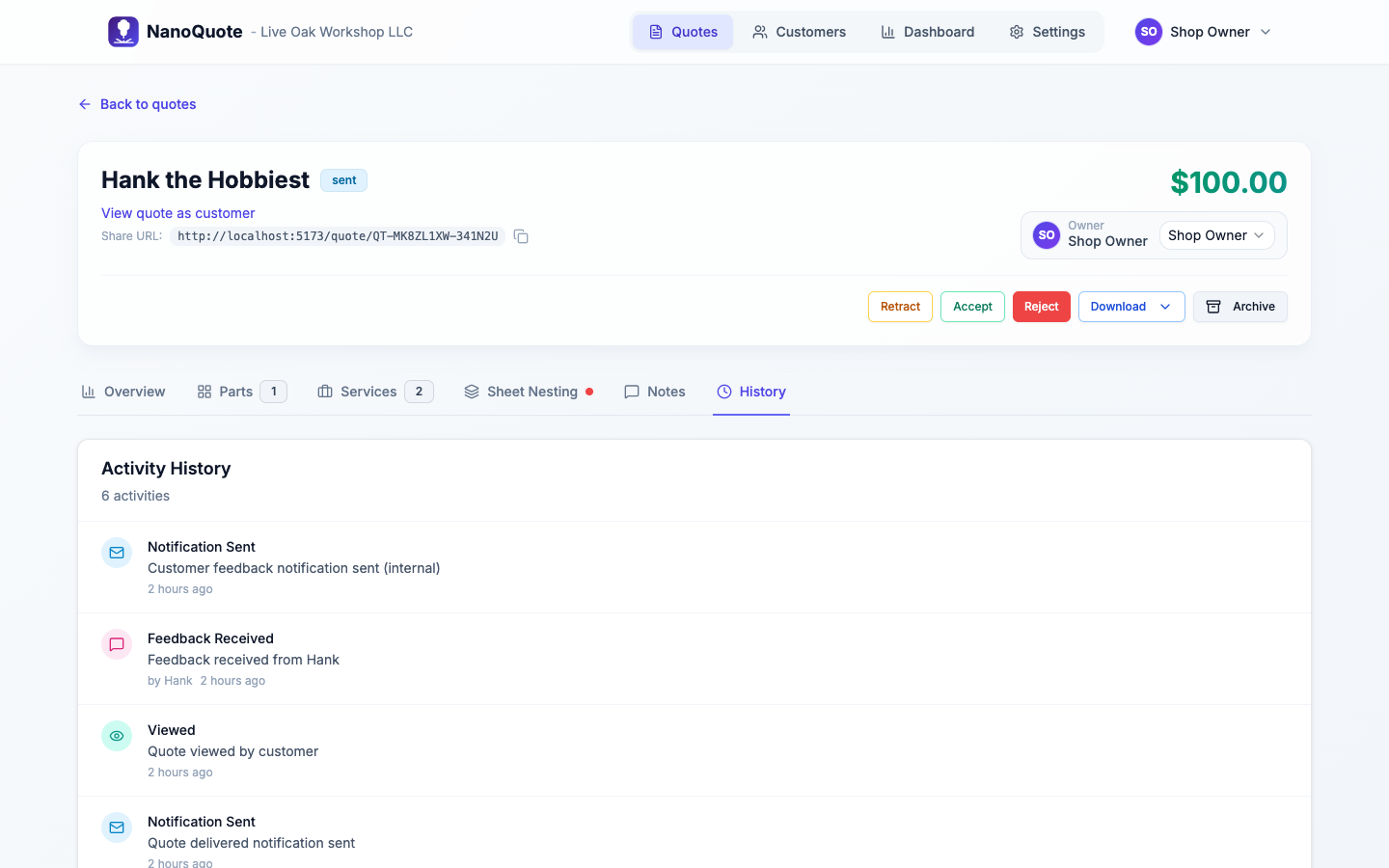
The History tab is a read-only timeline of activity on this quote. Entries are created automatically when:
- Quote lifecycle: quote created, status changed in the app (draft/sent/accepted/rejected), retracted, acceptance reversed, archived/unarchived.
- Customer/owner changes: customer or contact updated, ownership transferred.
- Parts & services: parts added, services added, part/service updated, line deleted, pricing recalculated.
- Totals & settings: tax settings updated, shipping/handling updated.
- Notes & feedback: internal/public note added, customer feedback submitted.
- Notifications: quote emails sent (delivered, accepted, denied, revised/resend).
- Customer view: an anonymous customer opens the public quote link.
Editing rules (when things are locked)
Quotes are typically not editable when:
- Status is Accepted or Rejected
- The quote is Archived
If you need to make changes:
- Reverse acceptance/rejection back to Draft or Sent (available in the quote actions menu).