
Working with STEP files
Upload 3D STEP files, auto-detect cut paths for flat parts, and use the 3D perspective picker for complex geometry.
NanoQuote supports STEP files (.step, .stp) in addition to DXF. STEP files are 3D CAD models that NanoQuote flattens into 2D cut profiles for quoting.
How STEP processing works
When you upload a STEP file, NanoQuote:
- Parses the 3D geometry - Extracts all solid bodies from the file
- Analyzes each solid - Detects dimensions, thickness, and whether the part is flat
- Auto-selects the cut view (when possible) - For flat/sheet parts, NanoQuote automatically picks the optimal projection direction
- Shows the 3D perspective picker (when needed) - For complex parts where the cut direction isn't obvious, you choose which face to project from
Automatic view detection
NanoQuote can automatically detect the correct projection for flat, sheet-like parts:
- Parts where one dimension is much thinner than the others (like sheet metal brackets, plates, or panels)
- The system identifies the thin direction and projects perpendicular to it
- When auto-detection succeeds, processing continues without user intervention
Auto-detection works best when:
- The part has a clear "thickness" dimension (e.g., 3mm thick but 200mm x 150mm in the other directions)
- The part is genuinely flat (not a block, cylinder, or complex 3D shape)
The 3D perspective picker
When NanoQuote can't automatically determine the cut direction, you'll see the 3D Perspective Picker:
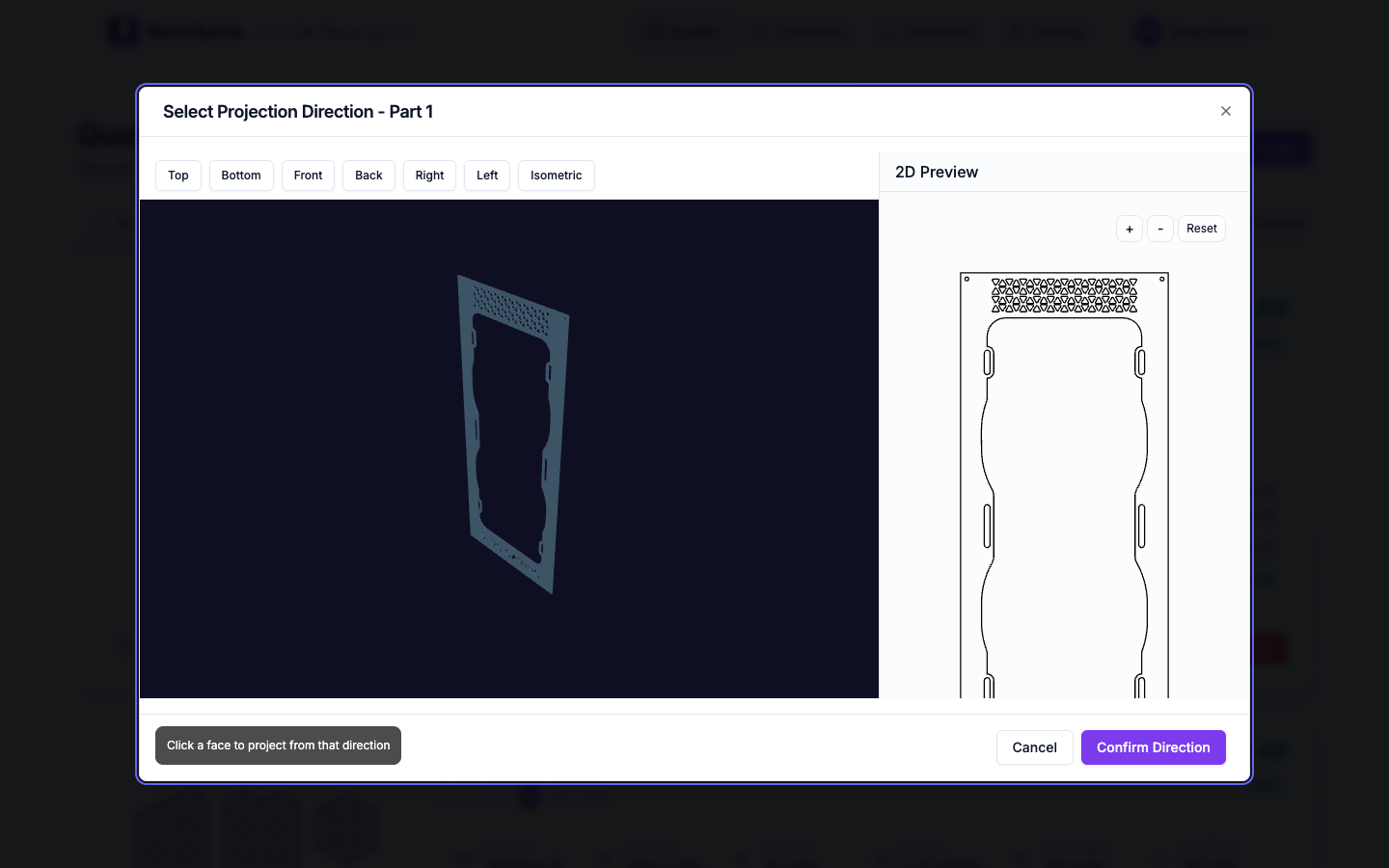
Features:
- Interactive 3D view - Rotate the model to inspect it from any angle
- Face highlighting - Hover over faces to see them highlighted; click to select a projection direction
- Preset views - Quick buttons for Top, Front, Right, Back, Left, Bottom, and Isometric views
- Live 2D preview - See the resulting cut profile before confirming
To select a projection direction:
- Rotate the 3D view to see the face you want to cut from
- Click on a face, or use a preset view button
- Review the 2D preview on the right side
- Click Confirm when satisfied
Multi-solid STEP files
STEP files can contain multiple solid bodies. NanoQuote handles each solid separately:
- Each solid becomes its own part line item in the quote
- Solids are named automatically (Part 1, Part 2, etc.)
- Auto-detection is attempted for each solid independently
- If any solid needs manual perspective selection, you'll be prompted for that specific solid
Tips for better STEP imports
From your CAD software:
- Export only the bodies you need quoted (remove fasteners, reference geometry, etc.)
- Use solid bodies, not surfaces or wireframes
- Ensure the model is at the correct scale (NanoQuote reads STEP dimensions as millimeters)
Part orientation:
- Parts oriented flat in CAD (lying on XY plane) typically auto-detect correctly
- If auto-detection fails, the perspective picker makes it easy to choose the right view
Complex assemblies:
- Consider exporting individual parts as separate STEP files for cleaner quotes
- Or use the multi-solid handling to process all parts in one upload
STEP vs DXF
| Feature | STEP | DXF |
|---|---|---|
| File type | 3D solid model | 2D drawing |
| Auto-detection | Yes (for flat parts) | N/A (already 2D) |
| Manual selection | 3D perspective picker | Layer/source selection |
| Best for | Parts designed in 3D CAD | 2D drawings, profiles |
Both formats extract the same cut geometry data: cut length, pierce count, and bounding box dimensions.
Troubleshooting
"Part is not flat enough for auto-detection"
- This is normal for 3D parts. Use the perspective picker to select the cut face.
Unexpected cut profile
- Try a different projection direction in the perspective picker
- Check that you're selecting the correct face of the part
Missing geometry
- Ensure the STEP file contains solid bodies (not just surfaces)
- Check that the model exported correctly from your CAD software
Related: