
Quotes overview
Create, send, accept/reject, archive, and track quotes.
Quotes are the main workflow in NanoQuote: upload drawings, review pricing, and share a customer-ready link.
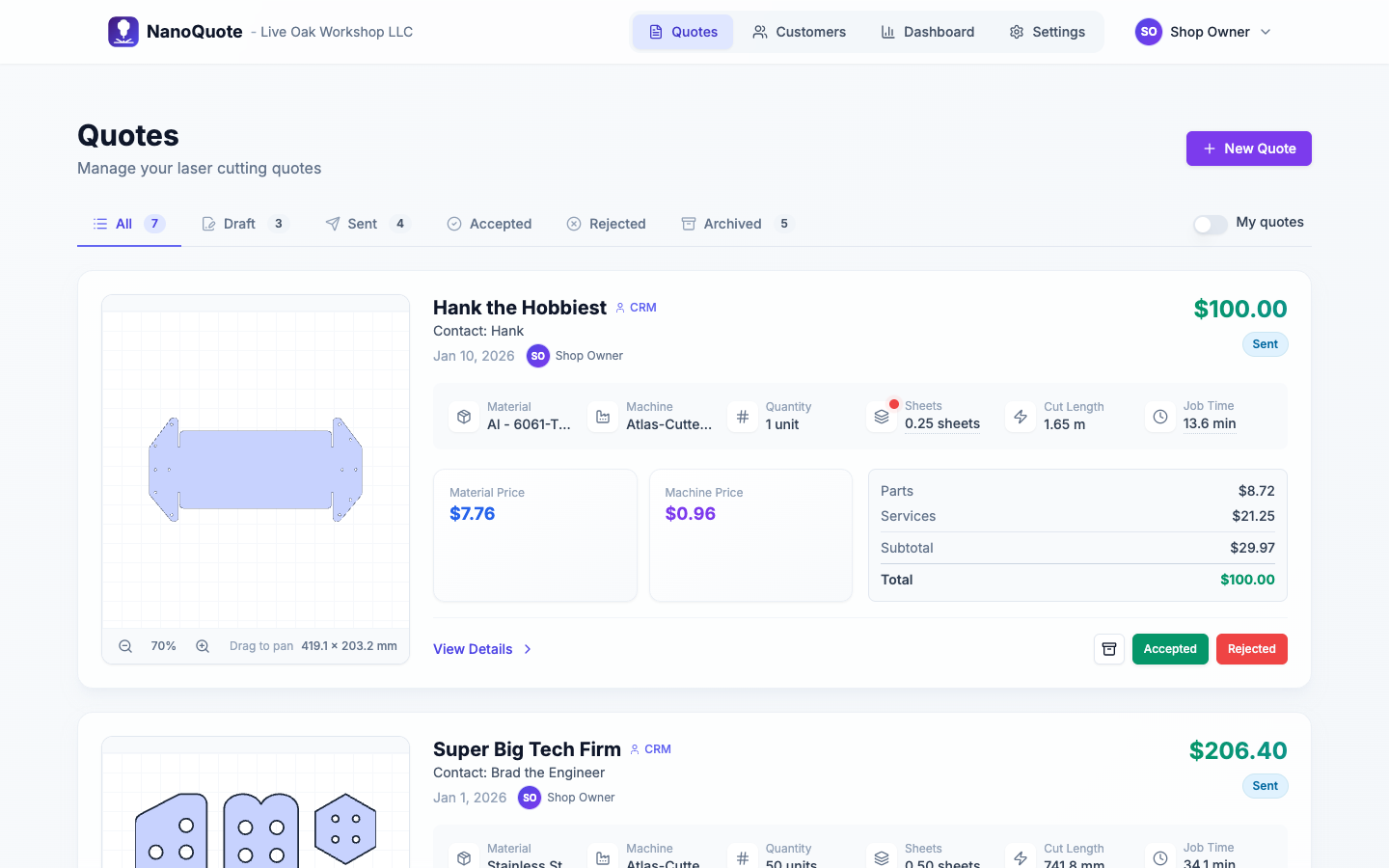
Statuses
- Draft: editable and not yet sent to the customer.
- Sent: customer can view the quote using the share link.
- Accepted / Rejected: customer decision (or your internal status update).
- Archived: hidden from default lists (can be restored).
Quotes list and filters
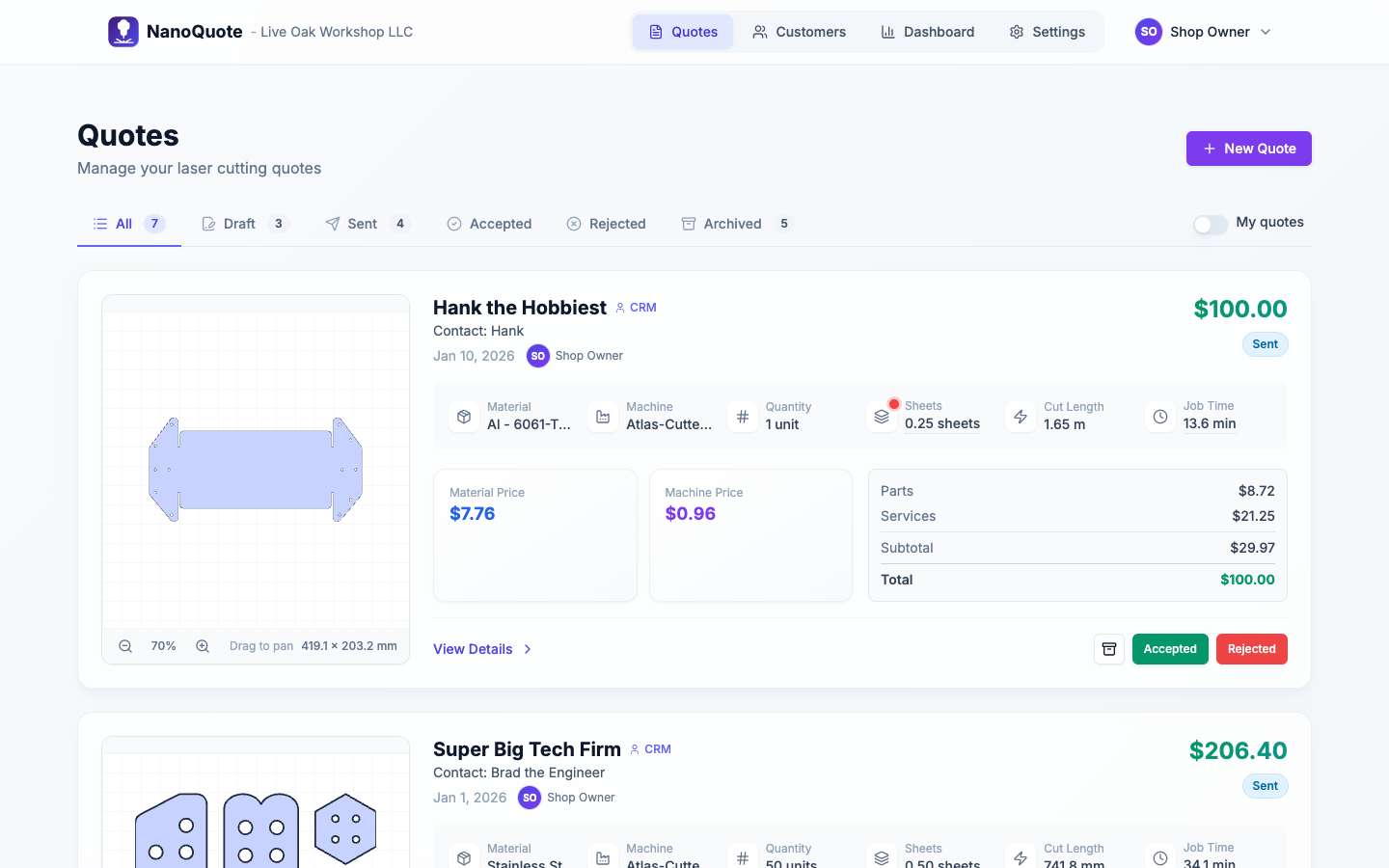
Use tabs to filter by status:
- All
- Draft
- Sent
- Accepted
- Rejected
- Archived
Optional filters:
- My quotes: only quotes you own (or created).
- Tab counts show how many quotes are in each status.
Create a quote (file upload wizard)
Select New Quote, then follow the wizard:
1) Upload
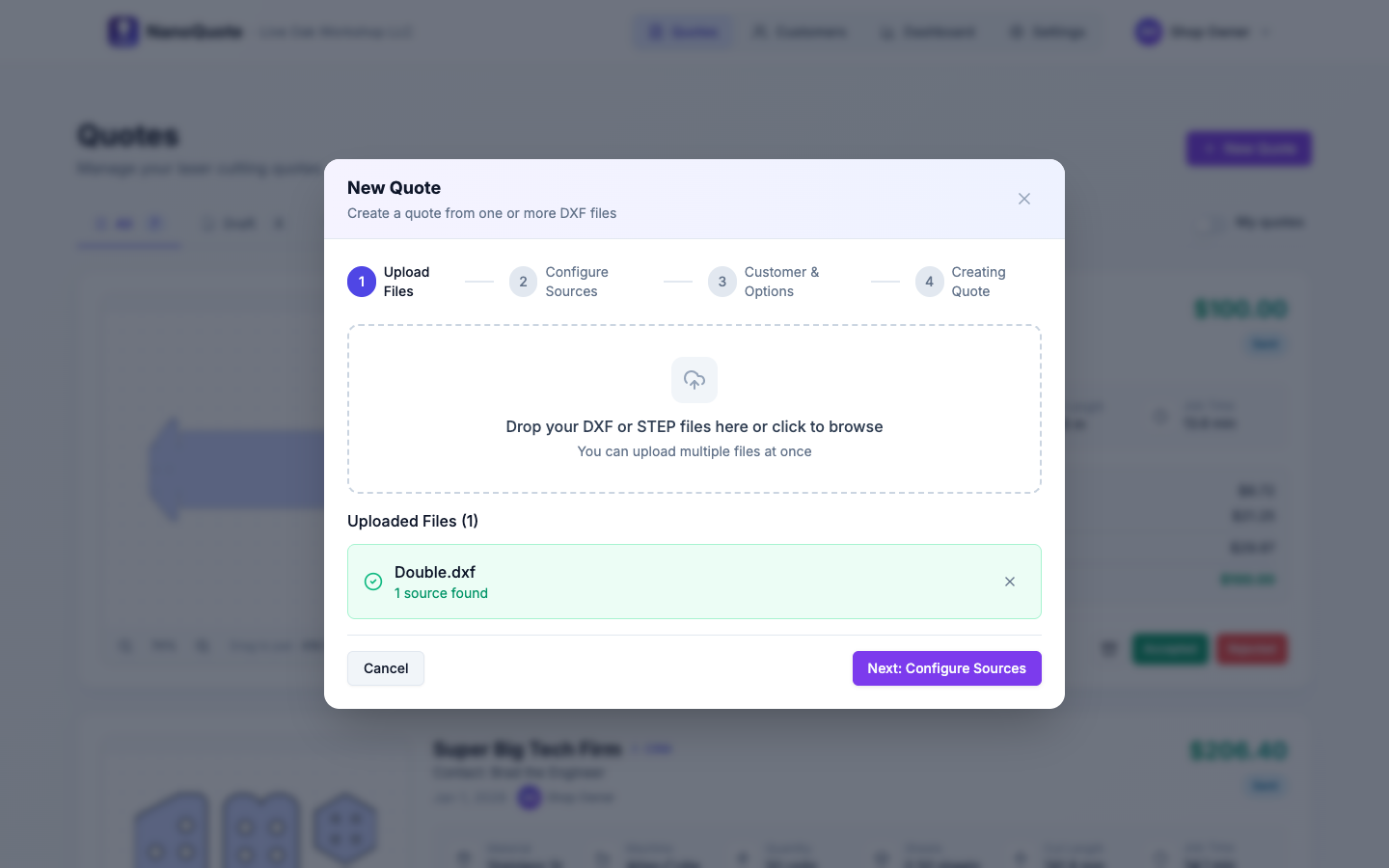
Supported file formats:
- DXF - 2D drawings (lines, arcs, polylines)
- STEP (.step, .stp) - 3D CAD models (automatically flattened to 2D cut profiles)
Drag/drop files or use the upload button.
STEP file processing: For STEP files, NanoQuote analyzes the 3D geometry and attempts to auto-detect the optimal cut view for flat, sheet-like parts. If the part is complex or the cut direction isn't obvious, you'll see a 3D perspective picker to select which face to project from. See Working with STEP files for details.
2) Configure sources (files and layers)
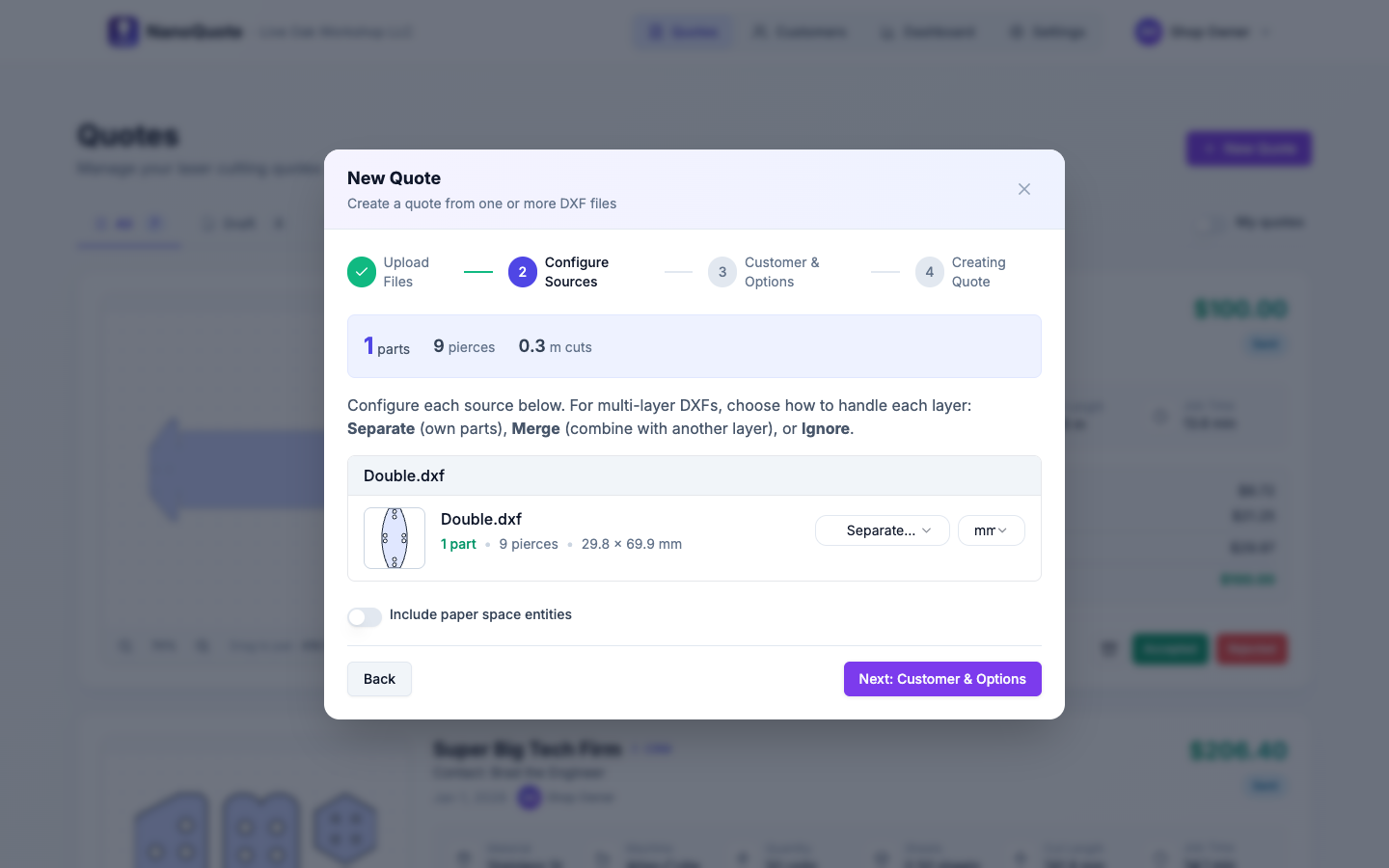
NanoQuote may detect multiple sources in a DXF:
- The whole file
- Individual layers (if your DXF is layered)
For each source you can:
- Enable/disable it (include it in the quote or not)
- Pick units (mm vs inches) if the file units are ambiguous
- Review an estimated preview and cut metrics
- Optionally include paper space entities
3) Customer and defaults
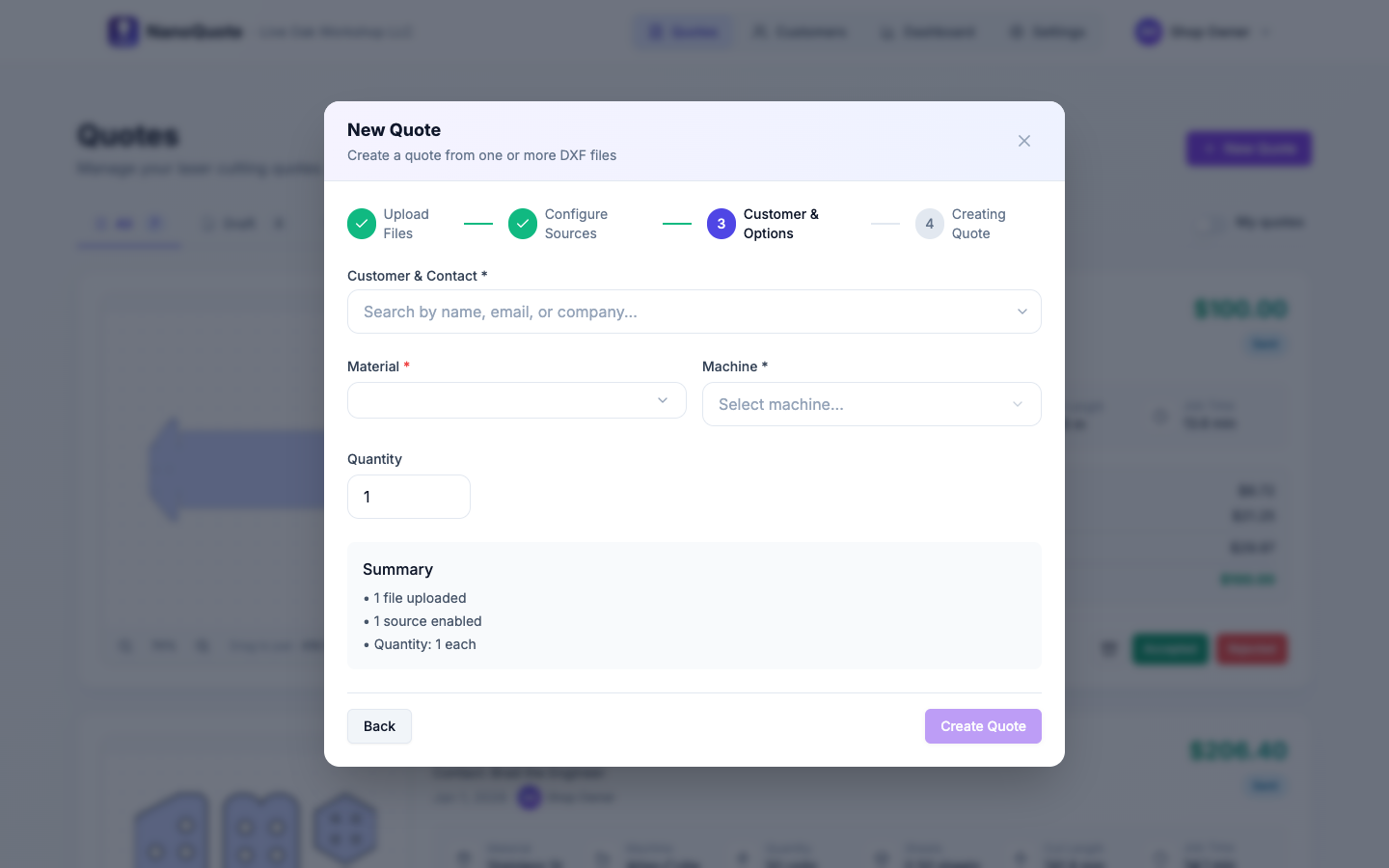
Set defaults that apply to the quote and new parts:
- Customer name/email (or pick an existing contact)
- Material (sheet goods)
- Machine
- Default quantity
4) Processing
NanoQuote parses the DXF, extracts geometry, and creates part line items.
If processing takes a bit, you will see progress updates.
Sending and sharing quotes
From a draft quote, select Send Quote.

After sending:
- The quote becomes Sent
- A customer share link becomes available (and the customer quote page can be opened)
If you need to pull access back:
- Use Retract to return a sent quote to draft (customer link access is removed).
If you changed a sent quote:
- Use Send Update to notify the customer the quote has been revised.
Note: a quote must have a customer/contact selected before it can be sent.
If a quote is accepted or rejected:
- Use the quote actions menu to revert it back to Draft or Sent.
Next: Quote editor